The TUI
pairmux tui is the console where you watch and steer every terminal below you: the agents you
started, the workers they started, and those workers' sub-agents. A bare pairmux ls (or list) at
your own interactive terminal opens it too. Agents, pipes, --json, and anything inside a pairmux
terminal still get the plain listing, so an agent cannot get stuck in the TUI.
Reading the screen
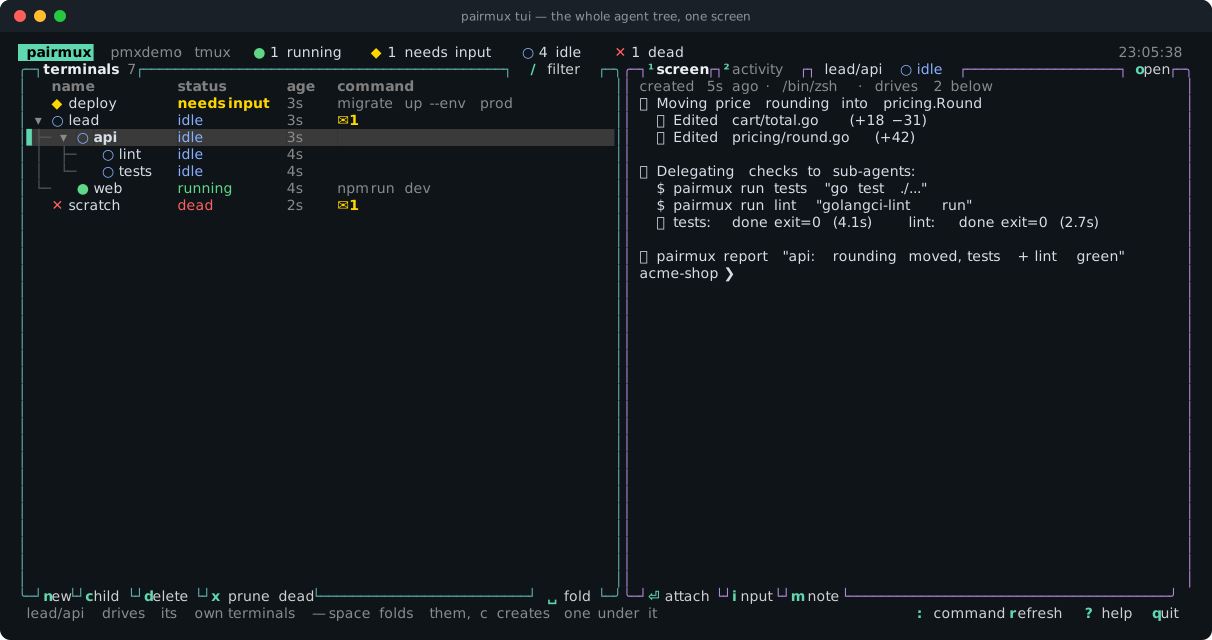
The layout follows btop. Every region is a box. Its name and controls sit in its border, and the key for each control is highlighted, so the screen doubles as a key reference. Every label in a border is also a button.
| region | what it shows |
|---|---|
| header | the endpoint and backend (pmxdemo · tmux), a count per status, the clock |
| terminals box | the whole tree: fold arrow, status glyph, name, status, time since last output, and the running command. ✉N marks notes its agent has not read, and +N marks the terminals in a folded subtree |
| preview box | the selected terminal, as ¹screen (what is on it now) or ²activity (its history of commands, exit codes and notes) |
| footer | what to do about the selected terminal — or the result of your last action — and the global buttons |
Status glyphs: ● running, ◆ needs input, ○ idle, ✕ dead. When you select a terminal that
needs input, the footer turns yellow and says how to answer it.
Terminals that draw symbols double-width
Many of these glyphs (● ◆ ─ │ ╭ …) are East Asian Ambiguous characters. A terminal set
to draw them two cells wide, as CJK setups often are, pushes the boxes out of line and moves every
click. So at startup the TUI asks the terminal how wide it draws each glyph, with a cursor position
query that waits up to about 200 ms. It draws any glyph that comes back two cells wide as ASCII
instead: + - | for the boxes, [label] for the border buttons, * running, ! needs input,
o idle, x dead, > for the selection and v/> for fold arrows. Other text, such as CJK names
or output, is measured to match and keeps its place.
A terminal that does not answer the query keeps the usual glyphs. If yours draws them two cells wide
but does not answer, set PAIRMUX_TUI_AMBIGUOUS_WIDTH yourself and the TUI skips the query:
PAIRMUX_TUI_AMBIGUOUS_WIDTH=1draws the usual glyphs.PAIRMUX_TUI_AMBIGUOUS_WIDTH=2draws the ASCII set.
Any other value is ignored, and the TUI asks the terminal.
Keys and buttons
| key | button | action |
|---|---|---|
↑ ↓ / j k, PgUp PgDn, g G | wheel over the list | move |
⏎ / a | ⏎ attach, or click a selected row again | attach; detach with Ctrl-b d and you are back |
n | new | new terminal (name, command such as claude or codex, directory, layer) at the top |
c | child | new terminal under the selected one — a sub-agent of it |
d | delete | kill a live terminal (and everything below it; journals kept) or delete a dead one's journal |
x | x prune dead | delete the journals of every dead terminal in the tree |
space ← → | ␣ fold, or click a ▾/▸ | fold / unfold a terminal's sub-terminals |
/ | / filter | filter by path, command or status; esc clears |
1 2 / tab | ¹screen ²activity | switch the preview |
o | open | the preview full screen and scrollable — screen becomes the whole retained output history |
i | input | send one line of input (never a secret — attach for that) |
m | m note | leave a note the terminal's agent sees in its next reply |
: | : command | run any pairmux command and read its output here |
r, ?, q | refresh, ? help, quit | refresh now, show the key list, quit |
A click does what its key does. The buttons are the keys, not a second set of actions. Destructive
actions ask first, in a dialog whose yes and no are also buttons.
Inside tmux, attaching opens a nested tmux client. Detach it with Ctrl-b Ctrl-b d. The TUI turns
mouse reporting off while you are attached, so the pane receives your mouse, and turns it back on
when you return.
Answering a prompt an agent handed you
An agent that reaches a password or passphrase prompt must not type it. It hands off with
pairmux wait <name> --human --notify, and the terminal shows up as needs input:
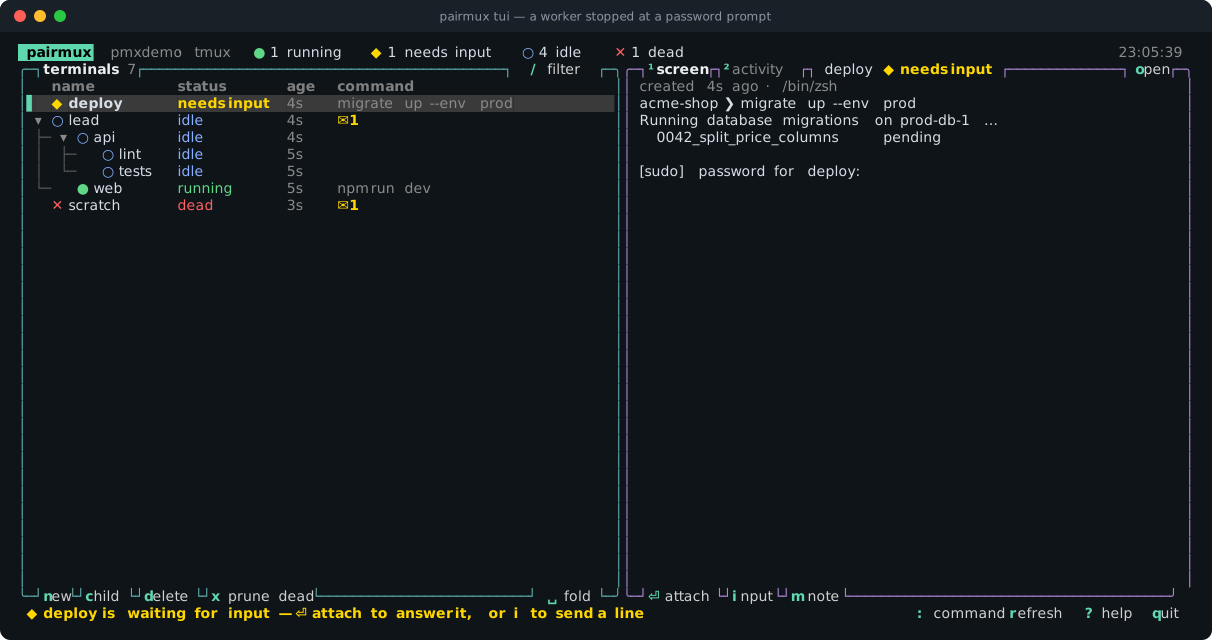
Press ⏎ (or double-click the row), type the answer into the real program, and detach with
Ctrl-b d. The agent's wait ends as soon as the prompt is answered, and the agent never sees what
you typed. Back in the TUI, press m to leave a note that tells the agent what you did. See
Human collaboration for the agent's side.
What a terminal has been doing
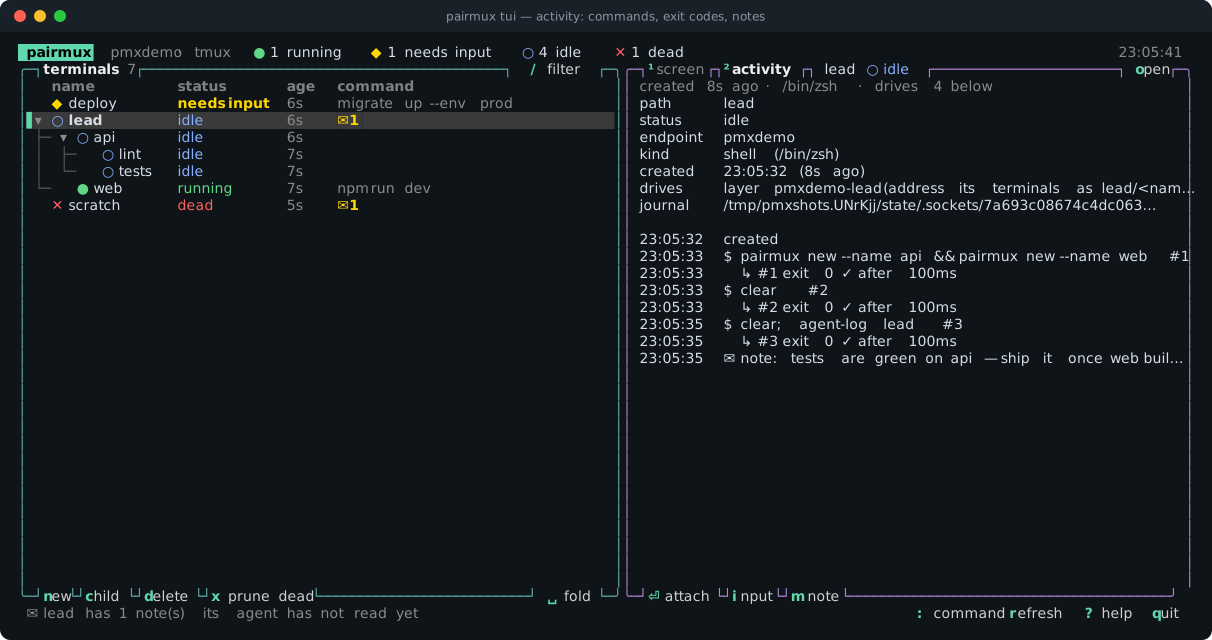
2 (or tab) switches the preview to activity. It shows what the terminal is and drives and
where its journal lives, then lists every command with its exit code and duration, every note and
whether its agent has read it, and every input event sent to the terminal. o opens it full screen.
Running pairmux commands in place
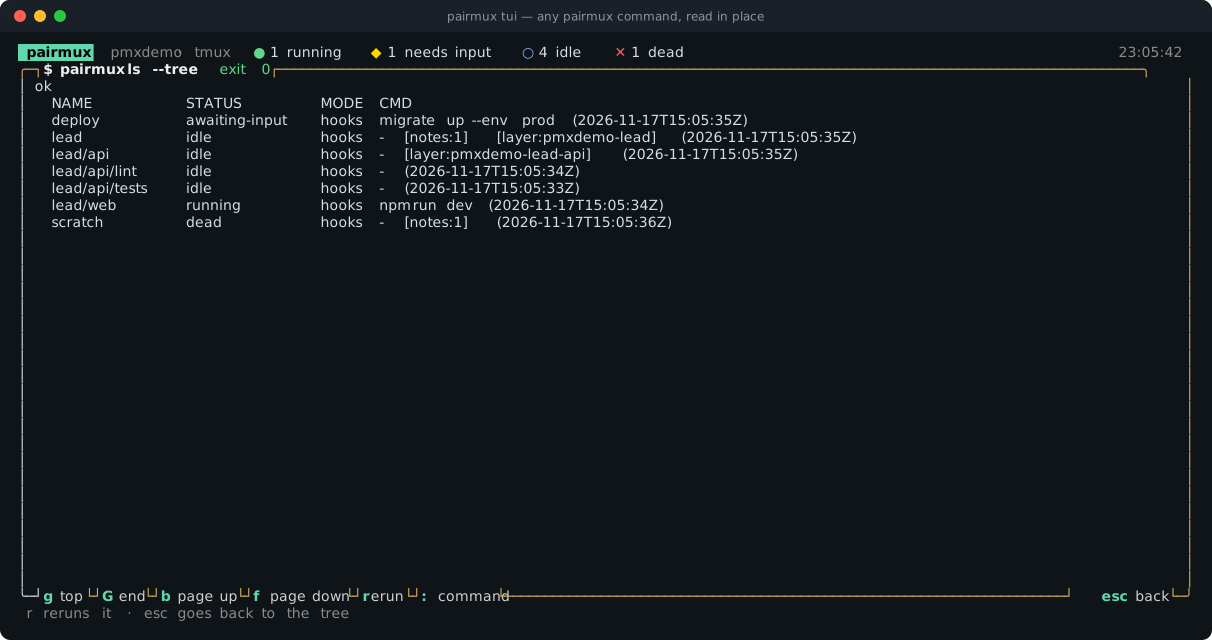
: runs any pairmux command and shows its readable output in a scrollable reader, not in
scrollback that the next redraw would wipe. {} stands for the selected path (log {} --cmd 3,
peek {}), and ↑ recalls the last command. A slow run or wait runs in the background, so the
tree keeps updating. Read-only commands such as ls, peek, log and doctor rerun with r.
The TUI refuses commands that take over the terminal or never end (attach, watch, tui,
events, mcp serve and update) and says what to do instead.
Limits
- The TUI needs an interactive terminal on macOS or Linux. On Windows, use
pairmux watchandpairmux attach. NO_COLORturns color off. The layout and buttons stay.- The TUI reads the same state as the CLI on a timer (
--interval, default 1s). A program that needs the same live picture should subscribe topairmux eventsinstead of scraping the TUI.